Operational Setting
It shows the health status of the Instances, user can select whether to enable the health check or not.
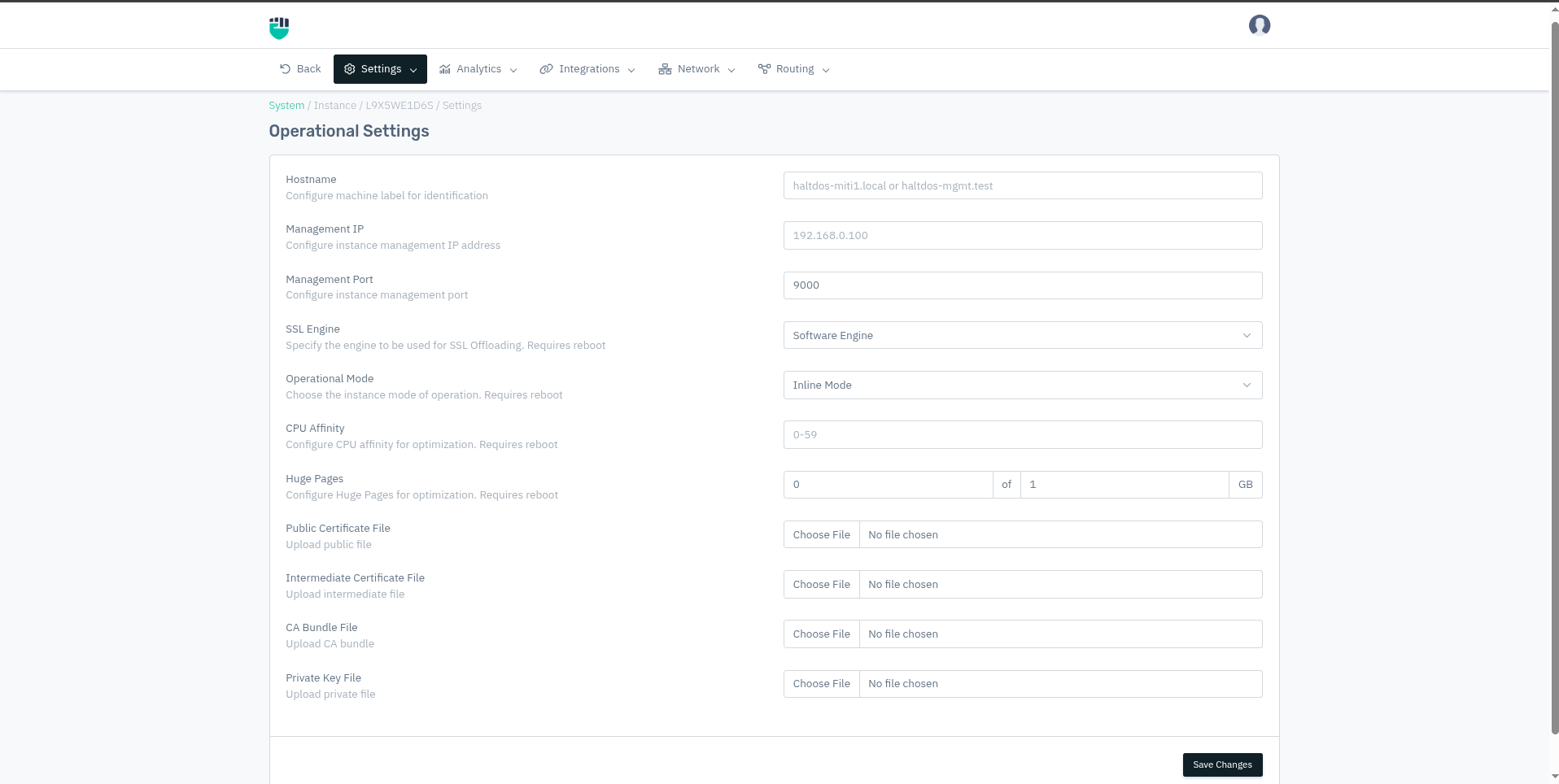
How to Use:
- Go to System > Instance > (Select Instance) > Setting > Operational Setting
- Configure your settings
- Click Save Changes
Description
Hostname
Configure machine label for identification
    Accepted values: String

    Default: Blank

    Example: haltdos-miti1.local or haltdos-mgmt.test
Management IP
The IP address of the instance used to access the Haltdos Management Console. This must be an IP address already assigned to one of the instance's network interfaces.
    Accepted values: Valid IPv4 address (format: A.B.C.D)

    Default: Blank
Example: 192.168.0.100
Changing the Management IP will immediately change the address used to access the console. If you enter an incorrect or unreachable IP, you will lose access to the Management Console. Verify the IP is reachable before saving.
Management Port
The TCP port on which the Haltdos Management Console listens for browser-based access.
    Accepted values: Integer (valid port range: 1–65535)

    Default: 9000
Example: 9000
Changing the Management Port will immediately change the URL used to access the console. Ensure the new port is not blocked by a firewall and is not already in use by another service on the instance.
SSL Engine
Specify the engine to be used for SSL Offloading. Requires reboot
    Accepted values: Software Engine / Hardware Engine

    Default: Software Engine
| Option | When to use |
|---|---|
| Software Engine | General-purpose deployments; SSL processing handled by the CPU |
| Hardware Engine | Instances with a dedicated SSL hardware accelerator (HSM or crypto card); provides higher SSL throughput and lower CPU load |
Select Hardware Engine only if the physical appliance has a supported SSL hardware accelerator installed. Using this option on an appliance without the hardware will cause SSL offloading to fail after reboot.
Operational Mode
Choose the instance mode of operation. Requires reboot
    Accepted values: Inline Mode / Offline Mode

    Default: Inline Mode
| Mode | How traffic flows | Typical use case |
|---|---|---|
| Inline Mode | Traffic physically passes through the Haltdos instance. The instance can inspect, block, and modify traffic in real time | Production deployments where active protection and load balancing is required |
| Offline Mode | Traffic does not pass through the instance. The instance monitors a copy of traffic (e.g., via SPAN/TAP port) and can only detect, not block | Passive monitoring, traffic analysis, or initial evaluation without impacting live traffic |
CPU Affinity
Configure CPU affinity for optimization. Requires reboot
    Accepted values: Integer

    Default: Blank
Leaving this blank lets the OS automatically manage CPU scheduling, which is suitable for most deployments. Configure CPU Affinity only when you need deterministic, high-throughput performance tuning on bare-metal appliances with many cores.
Huge Pages
Configure Huge Pages for optimization. Requires reboot
    Accepted values: Integer

    Default: Blank
Public Certificate File
Upload the public SSL/TLS certificate for the Haltdos Management Console's HTTPS interface. This is the certificate that browsers will see when accessing the console.
    Accepted values: File upload — PEM format (.pem or .crt)

    Default: Blank (uses built-in self-signed certificate)
Intermediate Certificate File
Upload intermediate file
    Accepted values: File upload — PEM format (.pem or .crt)

    Default: Blank
CA Bundle File
Upload CA bundle
    Accepted values: File upload — PEM format (.pem or .crt)

    Default: Blank
Private Key File
Upload the private key corresponding to the uploaded Public Certificate File. The private key is required for the Management Console to establish SSL/TLS sessions.
    Accepted values: File upload — PEM format (.pem or .key)

    Default: Blank