Backup Setting
Integration with FTP server and S3 for backing up
Overview
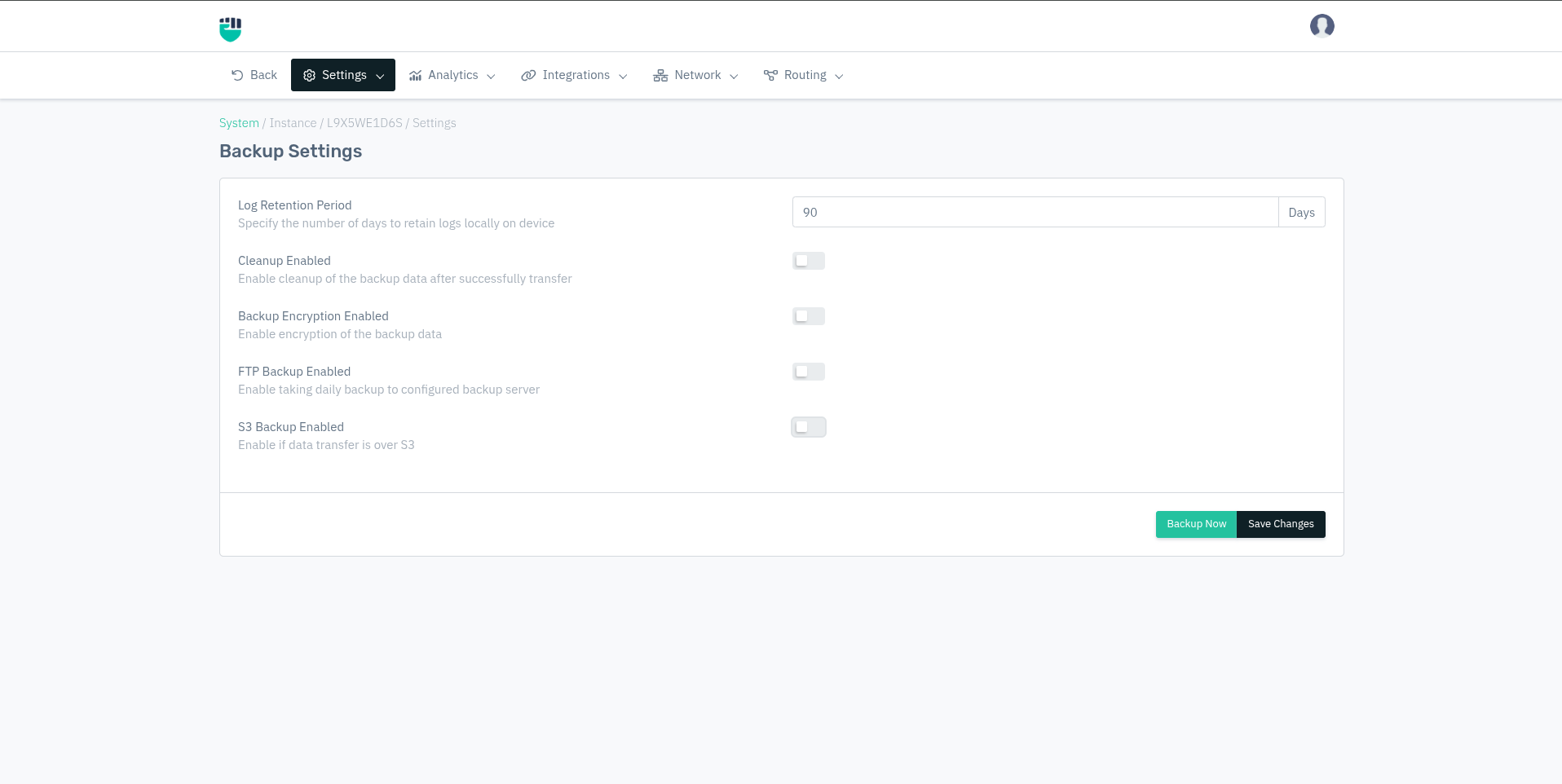
Haltdos supports periodic or on-demand backup for storing logs and policies to external FTP / SFTP servers and S3 storage. The platform also supports restoring from FTP if needed. By default, Haltdos retains logs locally on the device for a duration of 90 days. This duration can be increased to at most 550 days depending upon organization policy.
It is recommended to configure periodic backup to avoid data loss and ensure log availability for compliance and forensic examination
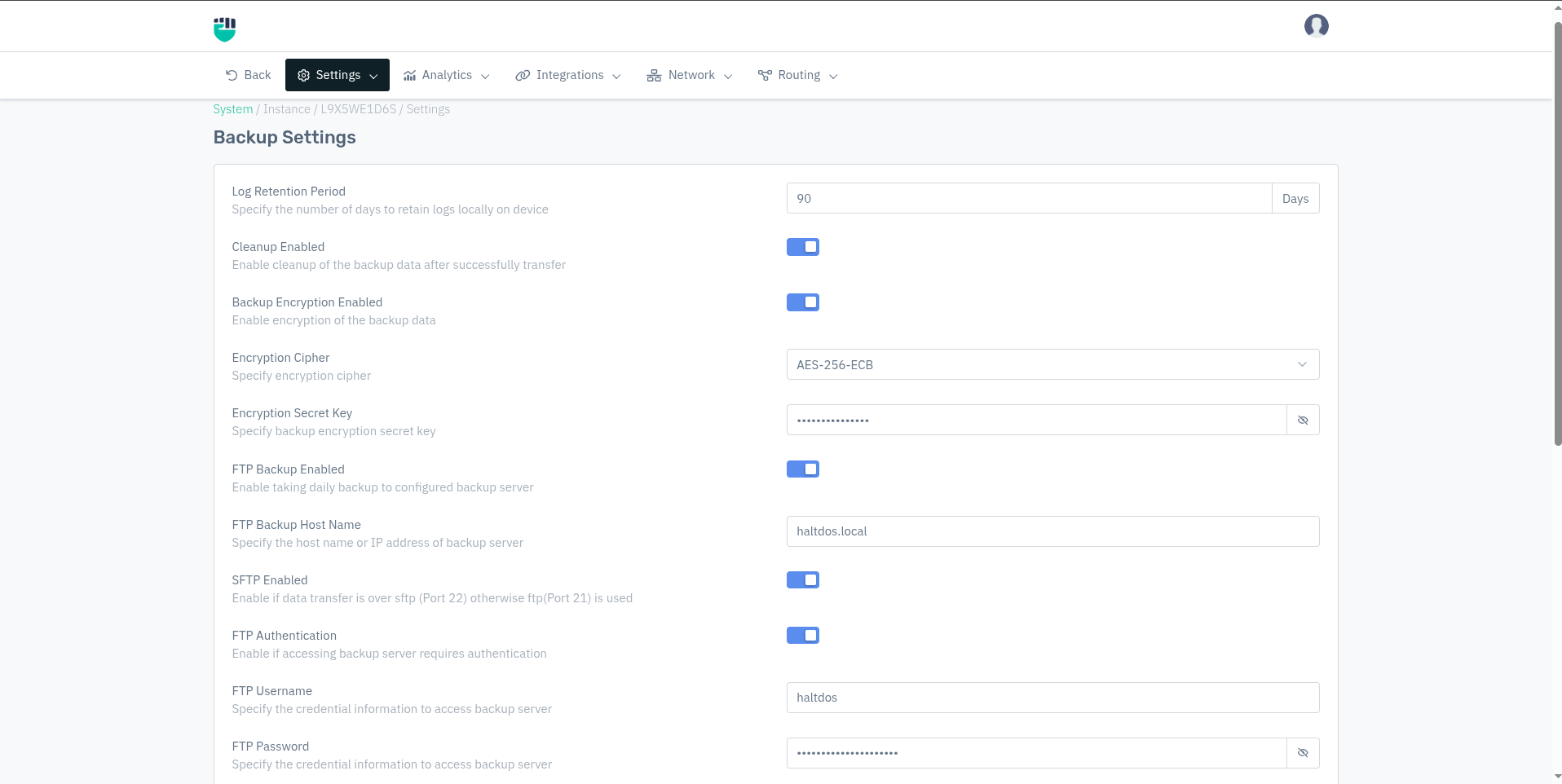
When Backup Encryption is enabled, additional fields appear to configure the cipher and secret key.
When FTP Backup is enabled, additional fields appear for FTP server configuration.
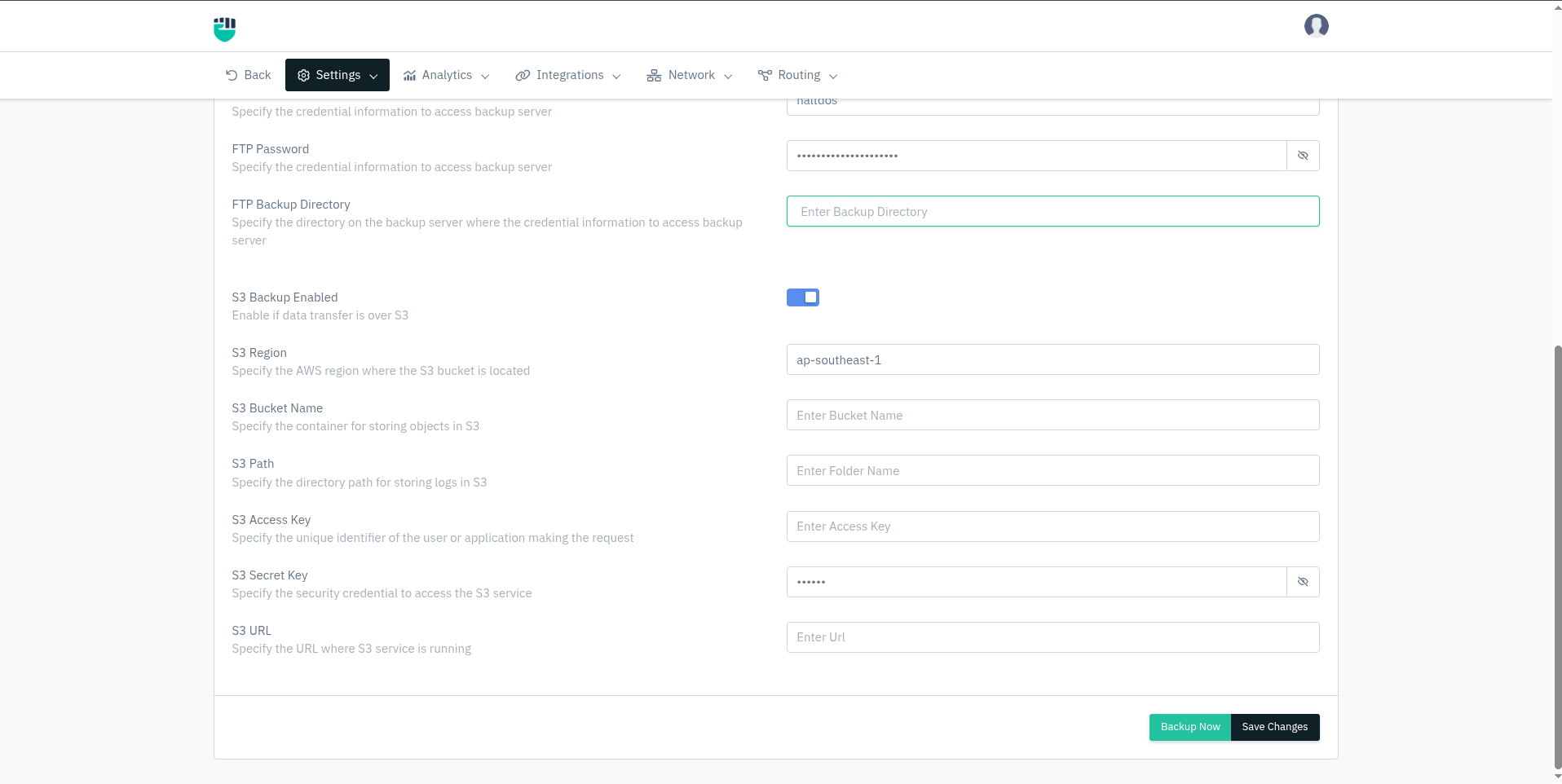
When S3 Backup is enabled, additional fields appear for S3 bucket configuration.
How to Use:
- Go to System > Instance > (Select Instance) > Setting > Backup Setting.
- Configure your settings.
- Click Save Changes.
- To trigger an immediate backup, click Backup Now
Description
Log Retention Period
This policy allows users to set the retention period for backups. This policy refers to the number of days for which logs retain locally on the device.
Accepted values : Integer (in days)
Default         : 90
Example: 90 — logs from the past 90 days are retained; anything older is purged automatically.
This setting controls local retention only. Logs transferred to FTP or S3 are retained on the remote server independently of this value.
Cleanup Enabled
When enabled, local backup data on the device is automatically deleted after it has been successfully transferred to the configured FTP or S3 destination. This frees up disk space on the appliance.
Accepted values : Enable / Disable
Default         : Disable
Enable this only after confirming that FTP or S3 backup is working correctly. If cleanup runs before a successful transfer, local logs will be deleted without a remote copy.
Backup Encryption Enabled
When enabled, backup data is encrypted before being transferred to the remote FTP or S3 destination. Enabling this reveals two additional fields: Encryption Cipher and Encryption Secret Key.
Accepted values : Enable / Disable
Default         : Disable
Encryption Cipher
(Visible only when Backup Encryption Enabled = ON)
The encryption algorithm used to encrypt backup data before transfer.
Accepted values : AES-256-ECB
Default         : AES-256-ECB
AES-256-ECB uses a 256-bit key for encryption. Ensure the same cipher is configured on the receiving end if decryption is required after restore.
Encryption Secret Key
(Visible only when Backup Encryption Enabled = ON)
The secret key used to encrypt and decrypt the backup data. This key must be kept secure — without it, encrypted backups cannot be restored.
Accepted values : String — alphanumeric and special characters allowed
Default         : Blank
Example: A strong secret key of sufficient length, e.g. MyS3cur3B@ckupK3y!2024
FTP Backup Enabled
This option allows users to enable or disable the backup settings.
    Accepted values: Enable / Disable

    Default: Disable
FTP Backup Host Name
This option allows users to specify the hostname or IP address of the backup server.
    Accepted values: String

    Default: Blank
Examples:
backup.company.com192.168.1.50
SFTP Enabled
(Visible only when FTP Backup Enabled = ON)
When enabled, data is transferred over SFTP (Port 22) — a secure, SSH-based protocol. When disabled, data is transferred over standard FTP (Port 21), which is unencrypted.
Accepted values : Enable / Disable
Default         : Disable
| Setting | Protocol used | Port | Encryption |
|---|---|---|---|
| Enabled | SFTP | 22 | Yes (SSH-based) |
| Disabled | FTP | 21 | No |
It is strongly recommended to enable SFTP in production environments to prevent backup data from being transmitted in plaintext over the network.
FTP Authentication
(Visible only when FTP Backup Enabled = ON)
When enabled, the backup transfer uses username and password credentials to authenticate with the FTP/SFTP server. Enabling this reveals the FTP Username, FTP Password, and FTP Backup Directory fields. By default, this is set to disable.
    Accepted values: Enabled / Disabled

    Default: Disabled
Most FTP/SFTP servers require authentication. Disable only if the backup server is configured to accept anonymous connections.
FTP Username (Visible only when FTP Authentication = ON)
Users can only use this option when Authentication is set to enable. This option allows users to set a username to authenticate the people
    Accepted values: String

    Default: Blank
Example: haltdos-backup, ftpuser01
FTP Password This option allows users to set the desired password to authenticate the user. This option will only be available when authentication is set to enable.
    Accepted values: String

    Default: Blank
Use a strong, unique password for the backup FTP account. Avoid reusing passwords from other services.
FTP Backup Directory This option allows users to specify the directory on the backup server where they can use credential information to access the backup server.
    Accepted values: String

    Default: Blank
Examples:
/backups/haltdos/home/ftpuser/haltdos-logs
S3 Backup Enabled This option allows users to enable or disable if the date transfer is over S3.
    Accepted values: Enabled / Disabled

    Default: Disabled
S3 Backup is compatible with AWS S3 and any S3-compatible storage service (e.g., MinIO, Wasabi, DigitalOcean Spaces). Configure the S3 URL field accordingly for non-AWS providers.
S3 Region This option allows users to specify the AWS region where the S3 bucket is located.
    Accepted values: String

    Default: Blank
Examples:
us-east-1ap-south-1eu-west-2
S3 Bucket Name (Visible only when S3 Backup Enabled = ON)
This option allows users to specify the container for storing objects in S3.
    Accepted values: String

    Default: Blank
Example: haltdos-backup-prod, company-waf-logs
S3 Path This option allows users to specify the directory path for storing logs in S3.
    Accepted values: String

    Default: Blank
Examples:
haltdos/logsbackups/instance1
S3 Access Key This option allows users to specify the unique identifier of the user or application making the request.
    Accepted values: String

    Default: Blank
S3 Secret Key (Visible only when S3 Backup Enabled = ON)
The AWS Secret Access Key corresponding to the S3 Access Key. This is used to authenticate API requests to S3.
Accepted values : String — alphanumeric and special characters (typically 40 characters for AWS)
Default         : Blank
S3 URL
(Visible only when S3 Backup Enabled = ON)
The endpoint URL of the S3 service. For standard AWS S3, this can be left as the default AWS endpoint. For S3-compatible storage providers (MinIO, Wasabi, etc.), enter the provider's specific endpoint URL.
Accepted values : String — valid HTTPS URL
Default         : Blank (uses default AWS S3 endpoint)
Examples:
- AWS S3:
https://s3.amazonaws.com - MinIO (self-hosted):
https://minio.company.com - Wasabi:
https://s3.wasabisys.com