Discovery
Scan and view all devices discovered within a network.
The Discovery page provides a real-time view of all devices detected within the selected network. Administrators can trigger a manual scan, filter results by status, type, category, and vendor, and export the discovered device list.
How to Use:
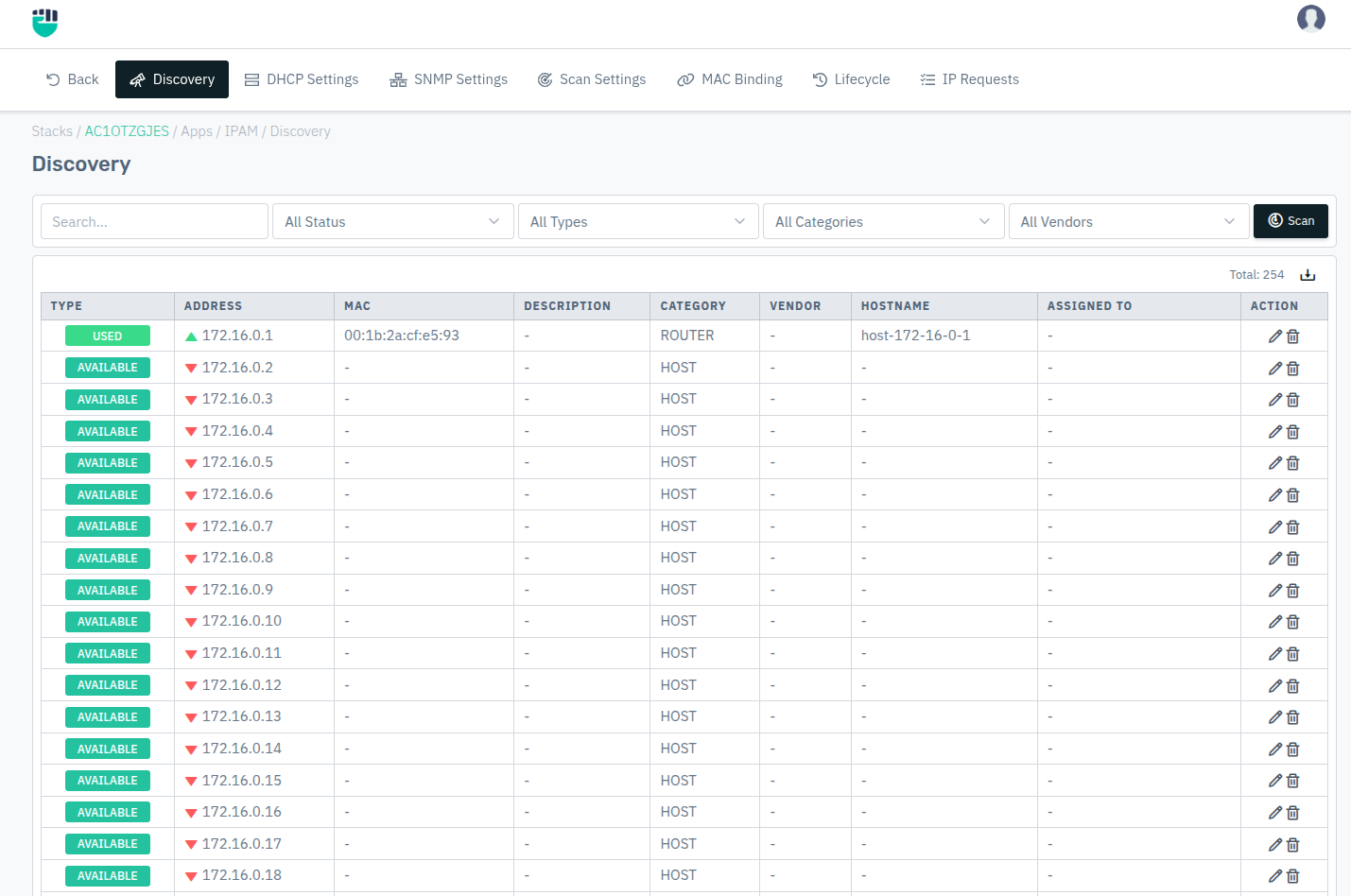
- Go to Stack > IPAM > Networks > select a network > Discovery.
- Click Scan to run a network scan immediately.
- Use the filter dropdowns to narrow results.
- Click the export icon to download the device list.
Filters
| Filter | Options |
|---|---|
| Status | All Status / Up / Down |
| Type | All Types / Used / Reserved / Leased / Available |
| Category | All Categories / Router / Switch / Server / Host |
| Vendor | All Vendors / (populated from scan results) |
Discovery Table
| Field | Description |
|---|---|
| Type | Address type — Used, Reserved, Leased, or Available |
| Address | IP address of the discovered device |
| MAC | MAC address of the device |
| Description | Label or note associated with this address |
| Category | Device category — Router, Switch, Server, Host, etc. |
| Vendor | Hardware vendor identified from the MAC OUI |
| Hostname | DNS hostname resolved for this device |
| Assigned To | User or entity to which this address is currently assigned |
Description:
Address
The IP address detected during the network scan.
MAC
The hardware (MAC) address of the device responding at that IP address. Used for vendor identification and DHCP binding.
Description
A human-readable label that can be assigned to a discovered device to identify its role or owner.
Category
The functional category of the device as identified or manually assigned.
Accepted values: Router / Switch / Server / Host / Printer / Camera / Phone / Other
Vendor
The hardware manufacturer identified by looking up the OUI portion of the MAC address.
Hostname
The hostname resolved via reverse DNS for the device's IP address.
Assigned To
The user or system entity to which this IP address has been assigned.
Status
Indicates whether the device is currently reachable on the network.
Accepted values: Up / Down
See Also
- To edit network properties (name, IP/CIDR, VLAN), see Networks.
- To configure the automated scan schedule, see Scan Settings.