DHCP Settings
Configure the DHCP server for a network.
The DHCP Settings page allows administrators to enable and configure a DHCP server for the selected network. The DHCP server is deployed on a specified Haltdos instance and interface, serving IP addresses from the configured pool to devices in the network.
How to Use:
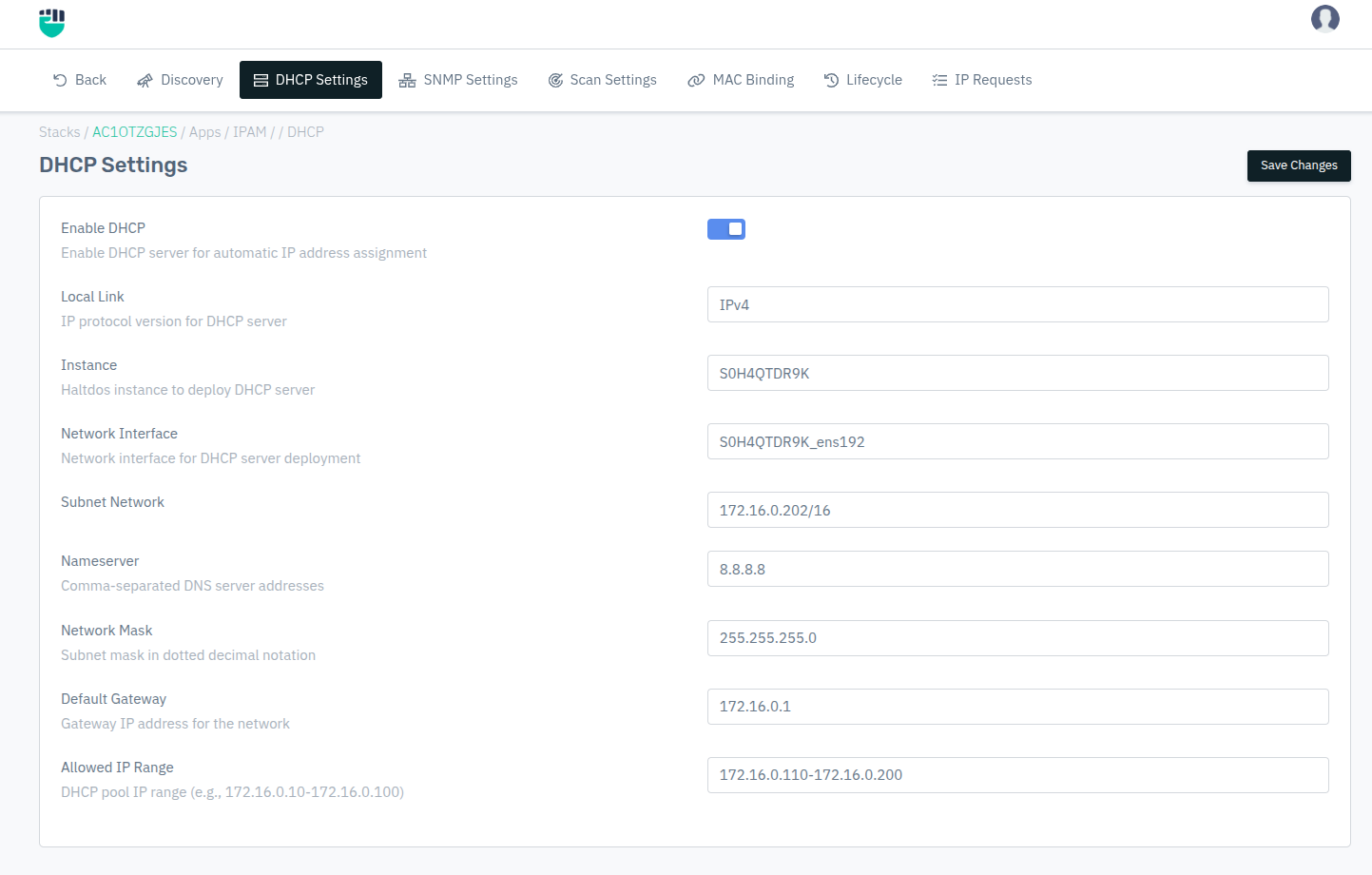
- Go to Stack > IPAM > Networks > select a network > DHCP Settings.
- Toggle Enable DHCP to activate the DHCP server.
- Fill in the DHCP parameters.
- Click Save Changes.
Description:
Enable DHCP
Enables the DHCP server for automatic IP address assignment to devices in this network.
Accepted values: Enabled / Disabled

Default: Disabled
Local Link
The IP protocol version for the DHCP server.
Accepted values: IPv4 / IPv6

Default: IPv4
Instance
The Haltdos instance on which the DHCP server will be deployed.
Accepted values: Select from available instances

Default: Blank
Network Interface
The network interface on the selected instance through which DHCP requests will be served.
Accepted values: Select from available interfaces

Default: Blank
Subnet Network
The subnet associated with the selected interface. This subnet is used to anchor the DHCP scope.
Accepted values: Select from available subnets

Default: Blank
Nameserver
Comma-separated list of DNS server addresses pushed to DHCP clients.
Accepted values: Comma-separated IP addresses

Example: 8.8.8.8, 8.8.4.4
Network Mask
The subnet mask in dotted decimal notation sent to DHCP clients.
Accepted values: Dotted decimal notation

Example: 255.255.255.0
Default Gateway
The default gateway IP address provided to DHCP clients.
Accepted values: IPv4 address

Example: 172.16.0.1
Allowed IP Range
The range of IP addresses available for dynamic allocation to clients. Specified as a start and end address separated by a hyphen.
Accepted values: IP range in format start-end

Example: 172.16.0.10-172.16.0.100