Operational Settings
Overview
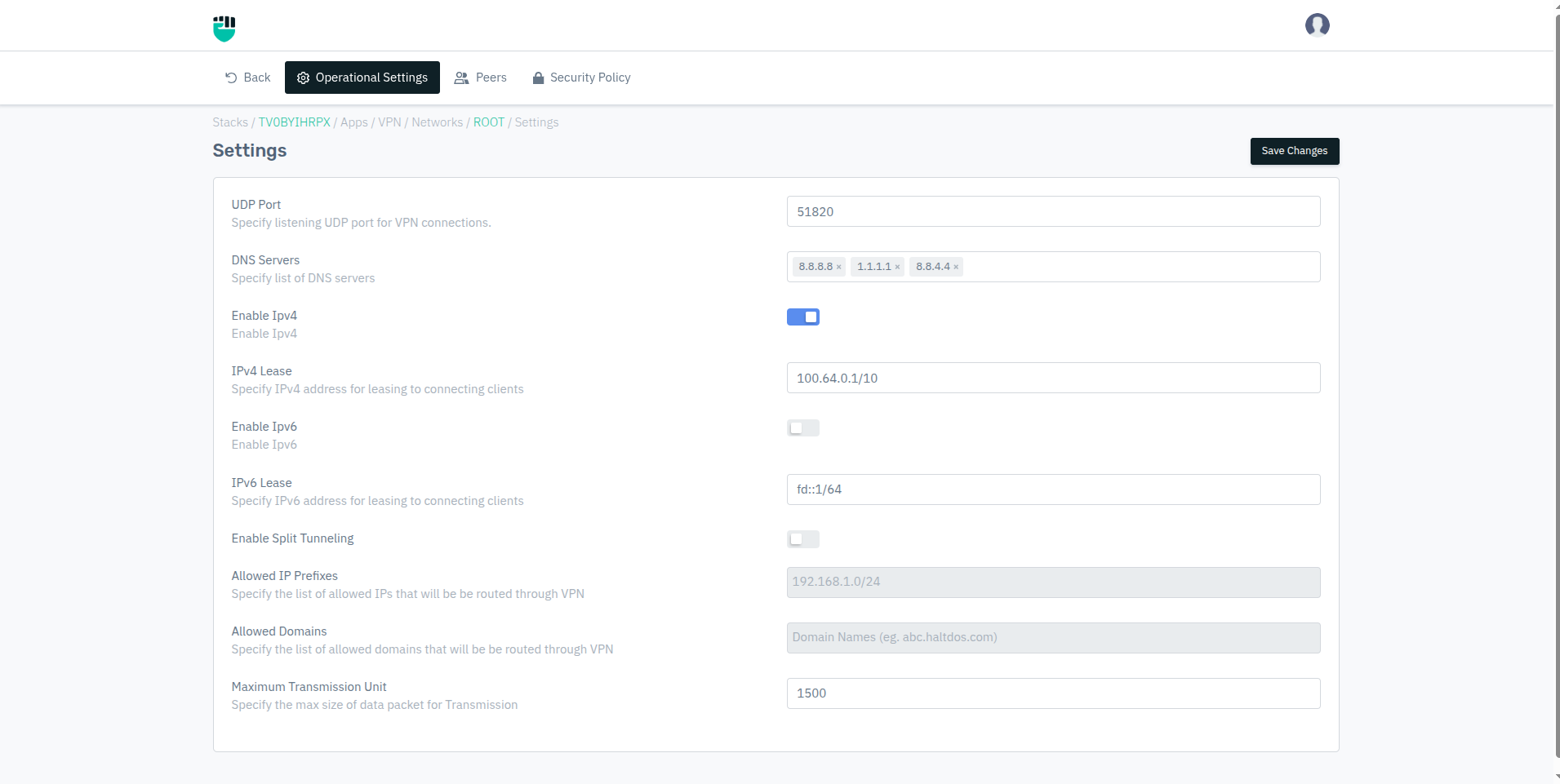
Operational Settings define the core networking behaviour of a VPN network. These settings control how the WireGuard tunnel is established, what IP addresses are assigned to clients, how DNS is handled, and whether split tunneling is active.
Changes to operational settings take effect for new connections. Existing connected clients must disconnect and reconnect to receive updated settings.
How to Use
- Go to Stack > VPN > Networks > (select network) > Operational Settings
- Configure the required fields
- Click Save Changes
- Instruct connected clients to reconnect for changes to take effect
Field Reference
UDP Port
The WireGuard listening UDP port for this network. All VPN clients must connect to this port.
Accepted values: Integer (1–65535)
Default: 51820
Important: Changing this port drops all existing connections immediately. Clients must be reconfigured to use the new port before they can reconnect. Ensure the new port is open in your firewall for UDP traffic.
DNS Servers
The DNS servers pushed to VPN clients when they connect. Clients use these servers to resolve domain names while the VPN is active.
Accepted values: One or more valid IP addresses (e.g., 8.8.8.8, 1.1.1.1)
Default: Blank
Note: In full tunnel mode (Split Tunneling OFF), all DNS queries go through the VPN tunnel and are resolved using these servers. If left blank, clients may experience DNS failures. It is recommended to always configure at least one DNS server.
Enable IPv4
Enables IPv4 address assignment for connecting clients. When disabled, clients cannot receive an IPv4 VPN address.
Accepted values: Enable / Disable
Default: Enable
IPv4 Lease
The IPv4 address pool from which VPN clients are assigned a virtual IP address. Specified in CIDR notation.
Accepted values: CIDR (e.g., 100.64.0.0/10)
Default: Blank
Note: The pool must be large enough to accommodate all concurrent clients. A
/10prefix provides over 4 million addresses. Avoid using ranges that overlap with your internal network subnets.
Enable IPv6
Enables IPv6 address assignment for connecting clients alongside IPv4.
Accepted values: Enable / Disable
Default: Disable
IPv6 Lease
The IPv6 address pool for client assignment when IPv6 is enabled.
Accepted values: IPv6 CIDR (e.g., fd::1/64)
Default: fd::1/64
Note: Clients must have IPv6 enabled at the OS level to receive an IPv6 tunnel address.
Enable Split Tunneling
Controls whether all client traffic or only specific traffic is routed through the VPN tunnel.
Accepted values: Enable / Disable
Default: Disable
When Disabled (Full Tunnel Mode): All traffic from the client — including internet browsing — is routed through the VPN server. The client's public IP appears as the VPN server's IP. DNS queries also go through the tunnel.
When Enabled (Split Tunnel Mode): Only traffic destined for the IPs or domains specified in Allowed IP Prefixes and Allowed Domains is routed through the VPN. All other traffic uses the client's direct internet connection. This is the recommended mode for remote work scenarios where users need simultaneous access to internal resources and the internet.
Behaviour comparison:
| Scenario | Full Tunnel (OFF) | Split Tunnel (ON) |
|---|---|---|
| Client public IP | VPN server's IP | Client's real IP |
| Internet traffic | Through VPN | Direct |
| Internal traffic | Through VPN | Through VPN |
| DNS | Through VPN tunnel | Direct (unless domain in Allowed Domains) |
| Performance | Higher server load | Lower server load |
Allowed IP Prefixes
(Active only when Split Tunneling is enabled)
The list of IP subnets whose traffic will be routed through the VPN tunnel. All other traffic goes direct.
Accepted values: One or more CIDR prefixes (e.g., 10.0.0.0/8, 172.16.0.0/12)
Default: 192.168.1.0/24 (placeholder example)
Example configuration for accessing internal office resources:
10.0.0.0/8        ← all office machines
172.16.0.0/12     ← all Haltdos VMs
Allowed Domains
(Active only when Split Tunneling is enabled)
Domain names whose traffic will be routed through the VPN tunnel. DNS queries for these domains are resolved through the VPN's DNS servers.
Accepted values: Domain names (e.g., haltdos.com, internal.company.com)
Default: Blank
Maximum Transmission Unit (MTU)
The maximum size (in bytes) of a data packet transmitted through the VPN tunnel.
Accepted values: Integer (typically 1280–1500)
Default: 1500
Note: Standard Ethernet MTU is 1500 bytes. WireGuard adds overhead (~60 bytes), so if you experience packet fragmentation or connectivity issues, reduce MTU to 1420 or lower. Setting MTU too low will degrade performance; setting it too high may cause fragmentation on certain network paths.
Recommended values:
- Standard networks:
1500 - Networks with overhead (PPPoE, some ISPs):
1420 - Conservative (avoids all fragmentation):
1380