Authentication
What is this?
Authentication Settings control how users prove their identity when logging into the VPN. This includes:
- Whether multi-factor authentication (MFA) is required
- What type of second factor is used
- Which authentication systems (backends) are supported
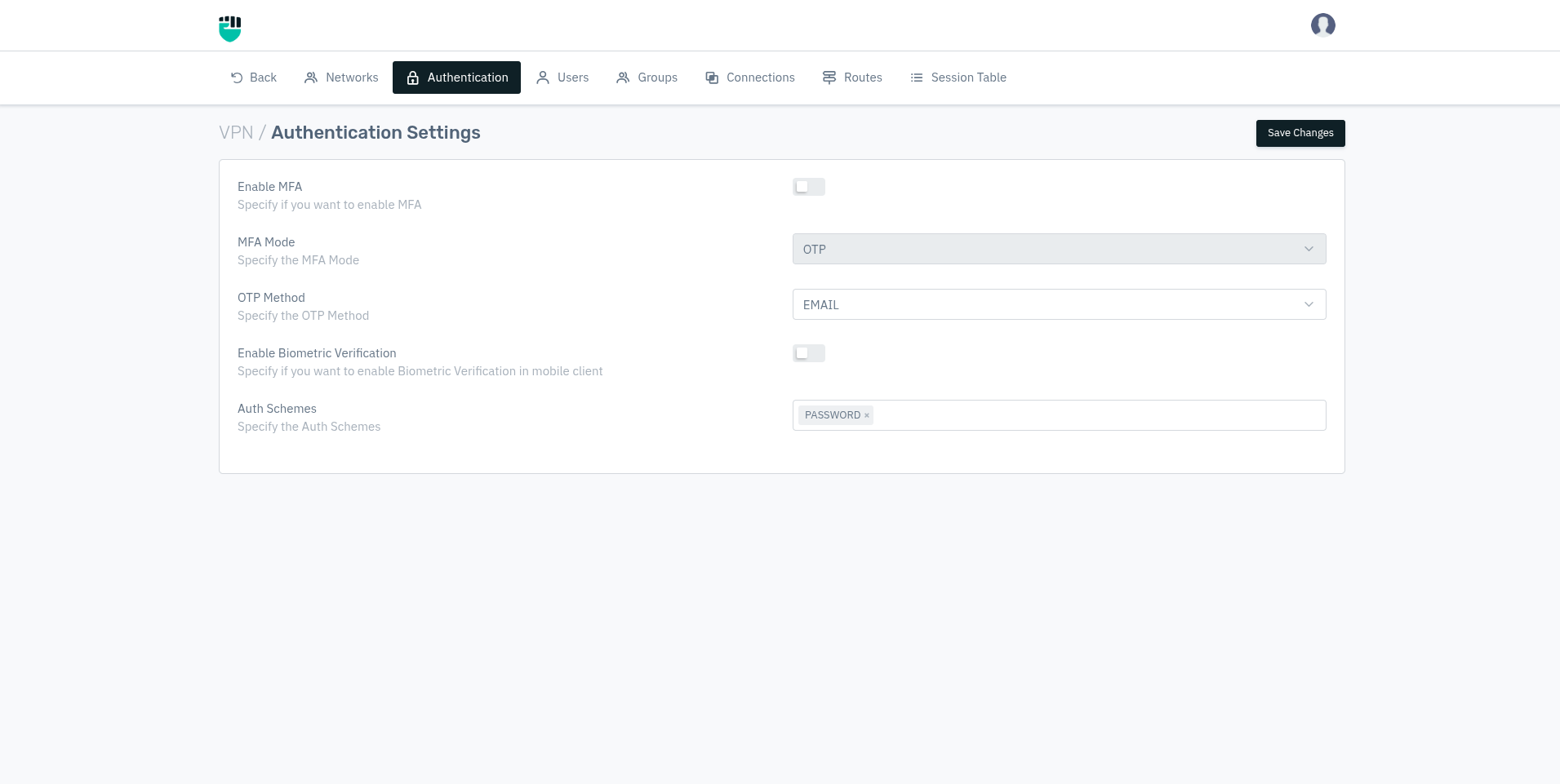
Enable MFA
Turns on Multi-Factor Authentication for all VPN logins. When ON, after entering their username and password, users must complete a second verification step.
Default: OFF
Why use MFA? Passwords alone can be stolen, guessed, or leaked. MFA adds a second layer — even if someone steals a password, they still cannot log in without the second factor (which only the real user has on their device).
MFA Mode
The type of second factor used when MFA is enabled.
Default:  TOTP
Options:  TOTP / OTP
TOTP (Time-based One-Time Password): The user installs an authenticator app on their phone (Google Authenticator, Microsoft Authenticator, Authy, etc.). When logging in, they open the app and enter the 6-digit code displayed — it changes every 30 seconds.
OTP (One-Time Password): A one-time code is sent to the user via a delivery channel (see OTP Method below). The user enters this code to complete login.
OTP Method
(Appears when MFA Mode is set to OTP)
How the one-time password is delivered to the user.
Default:  EMAIL
Options:  EMAIL
The user receives the OTP at their registered email address. They enter this code within the validity window to complete login.
Enable Biometric Verification
Allows mobile app users to authenticate using their device's biometric features (fingerprint, face recognition) instead of or alongside their password.
Default: OFF
ℹ️ Note: This setting only affects the Haltdos mobile app (Android and iOS). Desktop VPN clients and browser-based logins are not affected.
Auth Schemes
Defines which authentication backends users can authenticate against. Multiple schemes can be active simultaneously — users authenticate against whichever backend their account is configured for.
Default:  PASSWORD
Options:  PASSWORD / TACACS / LDAP / RADIUS
| Scheme | What it means |
|---|---|
| PASSWORD | Username and password stored locally in the Haltdos VPN system |
| LDAP | Authenticate using an organisation's existing Active Directory or LDAP server. Users log in with their corporate domain credentials |
| RADIUS | Authenticate via a RADIUS server |
| TACACS | Authenticate via a TACACS+ server |
Example: An organisation already has Active Directory for employee accounts. By adding LDAP as an auth scheme, employees can log into the VPN using their existing corporate username and password — no separate VPN password needed.