KB-7006
How to use custom SSL certificate with Haltdos GUI / Controller
Overview
This guide explains how to configure the Controller service to use a custom SSL certificate in PKCS#12 (.p12) format.
Prerequisites
- Valid
.p12certificate file - Keystore password
- Private key password
- Root/sudo access
- SSH access
Note
The PKCS12 certificate alias should be named as haltdos.
Steps to Follow:
Step 1 — Create environment file
Create an environment configuration file:
touch /opt/haltdos/controller/env
Add following configurations:
KEY_STORE_PATH = </path/to/cert.p12>
SSL_KEYSTORE_PASS = <keystore_password>
SSL_KEY_PASS = <private_key_password>
Save the file after editing.

| Variable | Description |
|---|---|
| KEY_STORE_PATH | Absolute path to the .p12 certificate file |
| SSL_KEYSTORE_PASS | Password used to protect the keystore |
| SSL_KEY_PASS | Password for the private key inside the keystore |
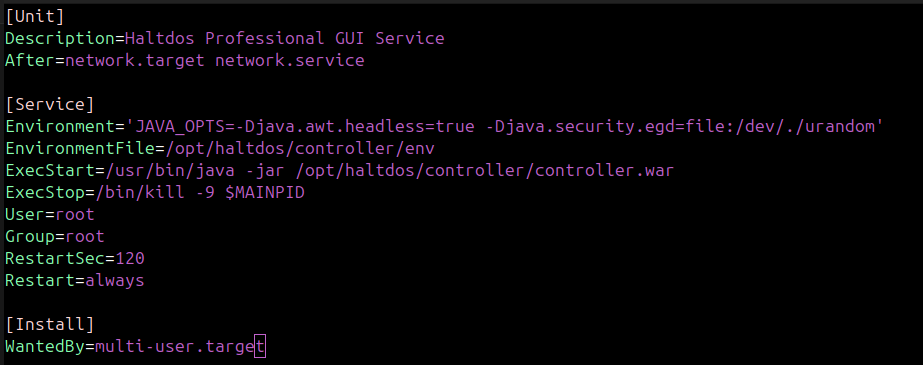
Step 2 — Update systemd service
Edit the Controller systemd service file:
vi /etc/systemd/system/controller.service
OR
nano /etc/systemd/system/controller.service
Add:
EnvironmentFile=/opt/haltdos/controller/env
Save the file.
Step 3 — Reload systemd
Reload Systemd Daemon:
systemctl daemon-reload
Step 4 — Restart Controller
Restart the service:
systemctl restart controller
note
This will cause WAF service to restart and downtime on the application for 2-5 seconds.
Verification
Check service status:
systemctl status controller
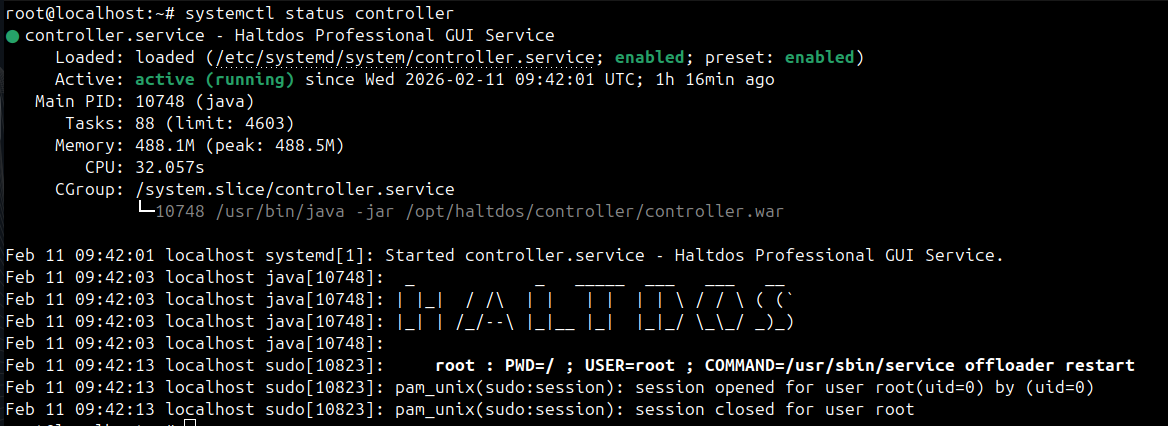
If configured correctly, the Controller will start with SSL enabled using the provided .p12 certificate.
Common Issues
Service fails to start
- Verify file path is correct
- Confirm passwords are correct
- Check permissions on
.p12file
Permission error
Ensure the controller user can read the certificate:
chmod 640 cert.p12
chown controller:controller cert.p12